ASUS BIOS PASSWORD REMOVAL
https://1drv.ms/v/c/d0f569d637dc8da4/IQQcqM8ndzoQTIgkXJfh1y42AVN-yGyn94bkxipR1w2GUBw?

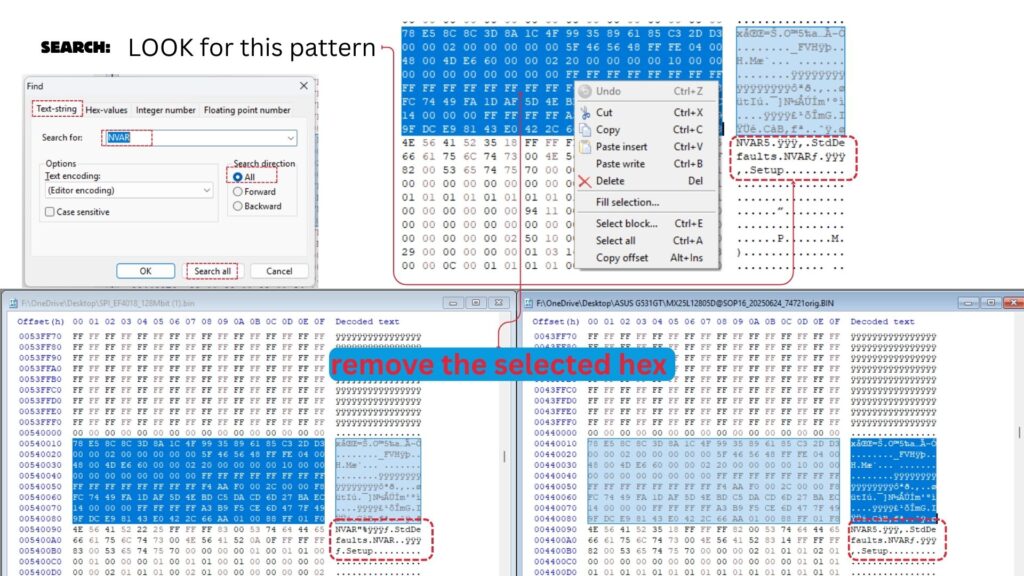
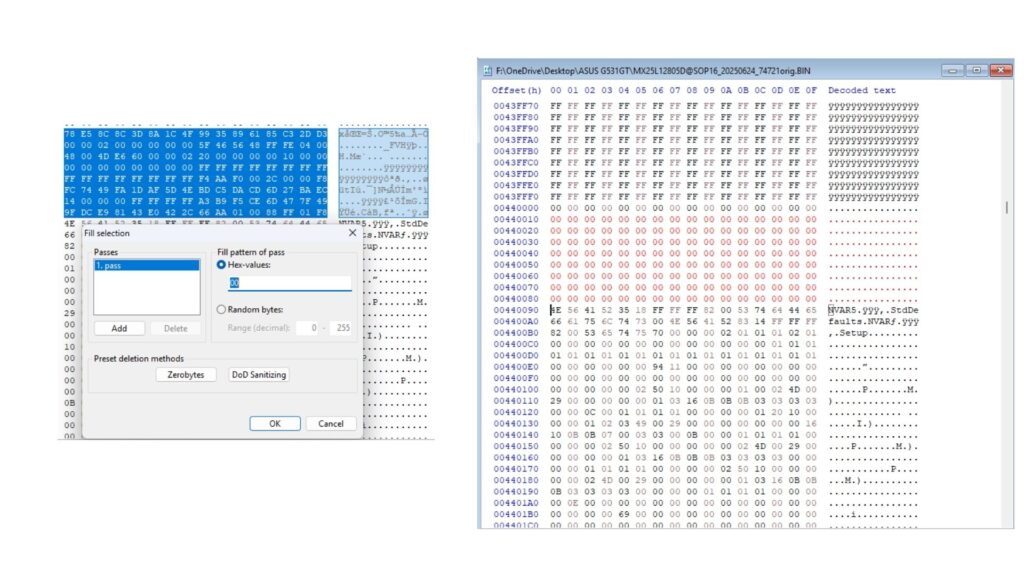
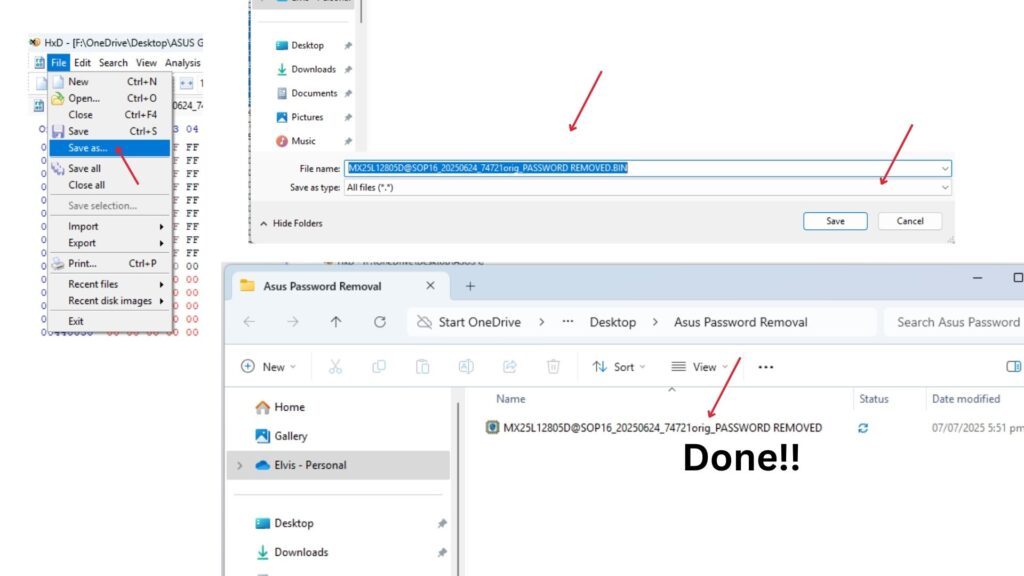
🛠️ Removing the BIOS administrator password on an ASUS computer depends on whether you remember the password or not. Here are the most effective methods:
✅ If You Remember the Password
You can easily remove or change it from within the BIOS:
- Restart your computer and press
F2orEscrepeatedly to enter BIOS setup. - Navigate to the Security tab.
- Select Administrator (Supervisor) Password.
- Clear the password field or enter a new one.
- Save changes and exit BIOS.
❌ If You Forgot the Password
Try one of these recovery options:
🔓 Method 1: Rescue Password Trick
- Boot into Windows and change the system date to
2001/01/02. - Restart and press
F2orEscto enter BIOS. - When the password prompt appears, press
Alt + R. - A rescue password window will appear. Enter:
ALAA4ABA. - You should now have access to BIOS. Reset the date and settings afterward.
🔧 Method 2: CMOS Battery Reset
- Power off and unplug your PC.
- Open the case and locate the CMOS battery (a coin-sized battery on the motherboard).
- Remove it for 15–30 minutes, then reinstall.
- This resets BIOS settings, including the password.
🧩 Method 3: BIOS Master Password Generator
- Enter an incorrect password 3 times at the BIOS prompt.
- Note the error code or checksum displayed.
- Visit a BIOS password generator site like BIOSBug and enter the code to get a master password.
⚠️ Important Notes
- These methods may not work on all ASUS models, especially newer ones with enhanced security.
- If none of these work, you may need to contact ASUS Support or visit an authorized service center.
- Resetting BIOS may affect system settings—back up important data if possible.
Want help identifying your exact model or walking through one of these steps? Just say the word.