Bitlocker Recovery
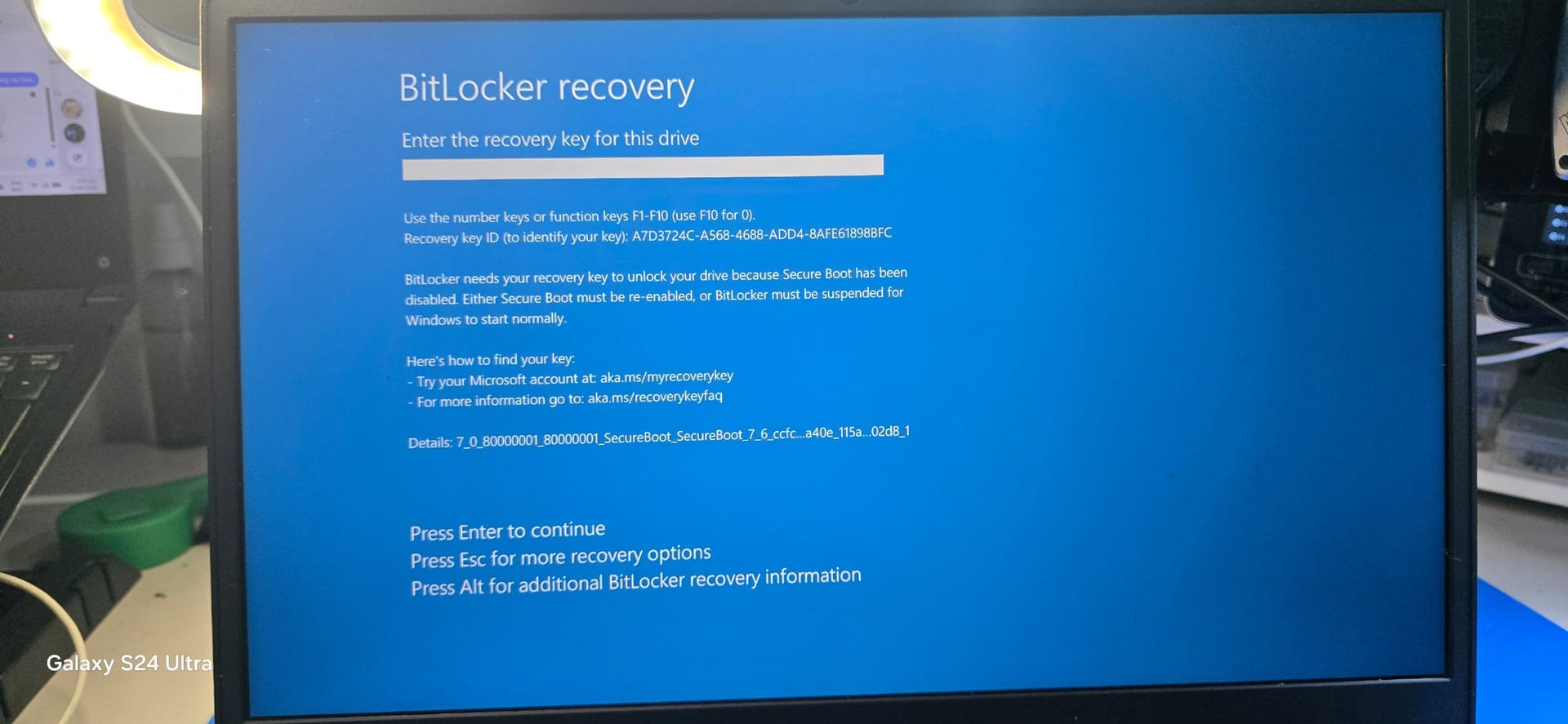
You can retrieve your BitLocker recovery key by checking the locations where it was saved when BitLocker was first enabled. The key is a 48-digit number, and without it, encrypted data cannot be unlocked.
Here’s a clear step-by-step procedure to locate your BitLocker recovery key:
01
Note the Recovery Key ID
When prompted for the BitLocker recovery key, write down the first 8 digits of the Recovery Key ID shown on the screen.
This ID helps you match the correct recovery key if you have multiple saved keys.
Keep it handy before checking storage locations.
02
Check Your Microsoft Account
Most Common Location
Most personal Windows devices automatically back up the recovery key to your Microsoft account.
Go to https://aka.ms/myrecoverykey
Sign in with the Microsoft account linked to your PC.
Match the Recovery Key ID with the one shown on your device.
Use the 48-digit key to unlock your drive.
03
Check Work or School Account
If your device is managed by an organization, the recovery key may be stored in Microsoft Entra ID or Active Directory.
Go to https://aka.ms/aadrecoverykey
Sign in with your work/school account.
Navigate to Devices → BitLocker Keys.
Match the Recovery Key ID and retrieve the correct key.
04
Look for a Printed Copy
You may have printed the recovery key when BitLocker was enabled.
Check important documents or files where you store PC-related papers.
The printout will show both the Key ID and the 48-digit recovery key.
05
Check a USB Flash Drive
BitLocker allows saving the recovery key as a text file on a USB drive.
Insert the USB drive into another computer.
Open the text file to view the recovery key.
Use it to unlock your encrypted drive.
06
Contact IT Support (if applicable)
If your device belongs to a company or school, IT administrators can help retrieve the recovery key.
Provide them with the Recovery Key ID.
They can access the key stored in Active Directory or Microsoft Entra ID.
Sources:
⚠️ Important Note: Microsoft cannot recreate or bypass a lost BitLocker recovery key. If none of the above locations contain your key, the encrypted data cannot be accessed.
Would you like me to also show you how to disable BitLocker temporarily (if you still have access to Windows), so you won’t be prompted for the recovery key again after hardware or firmware changes?